Table of Contents
IFC Models
Import & Export
To upload an IFC model, switch to the "IFC Models" module and click on the list icon. An overview of all existing models is displayed. Then click on "+New IFC model" and select the desired file from your device. Assign a status for the model and confirm the process by clicking the "Create" button. In the model overview, you can download or delete existing models.
Updated on 29.09.25
Navigation & Features (Viewer)
IFC Viewer
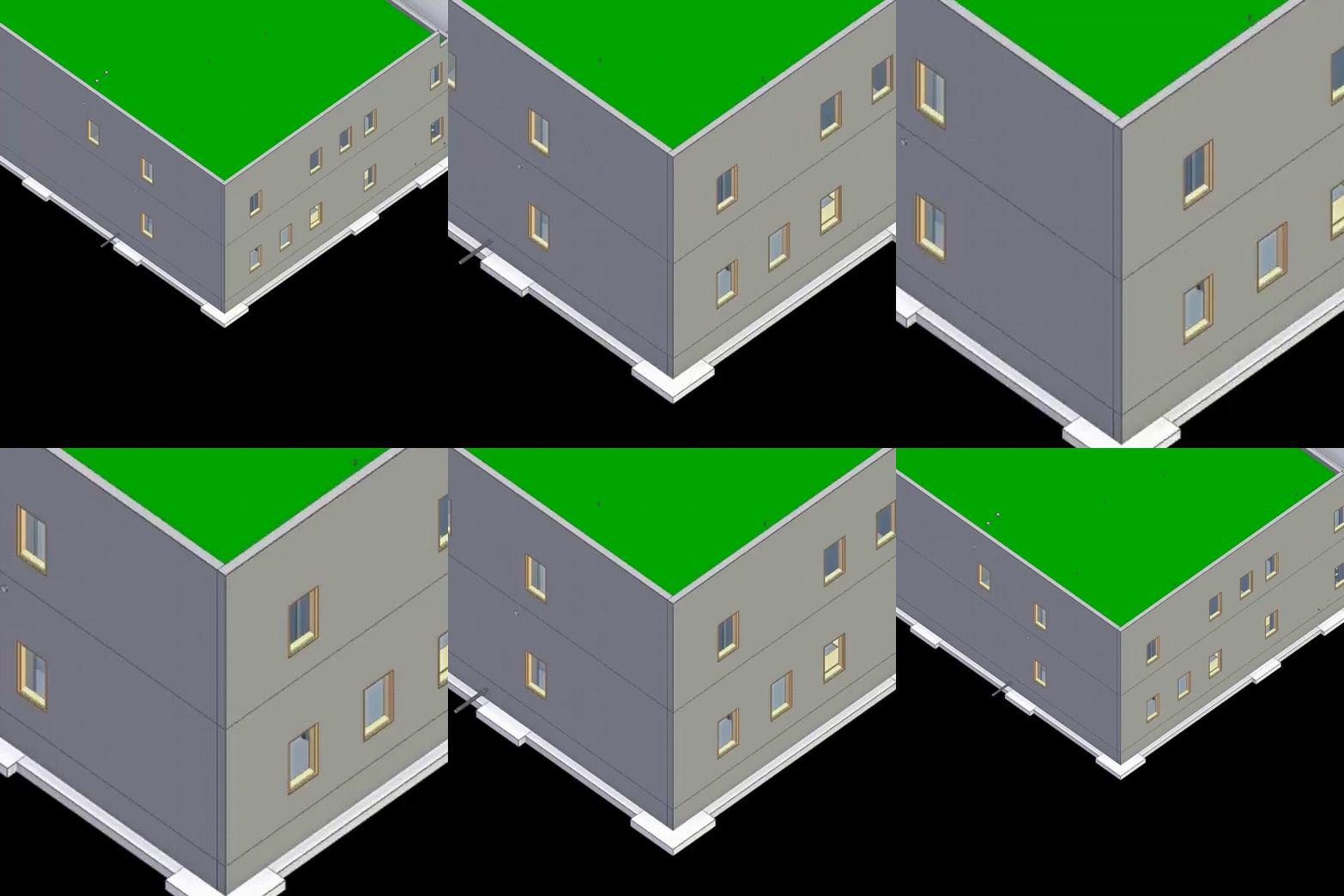
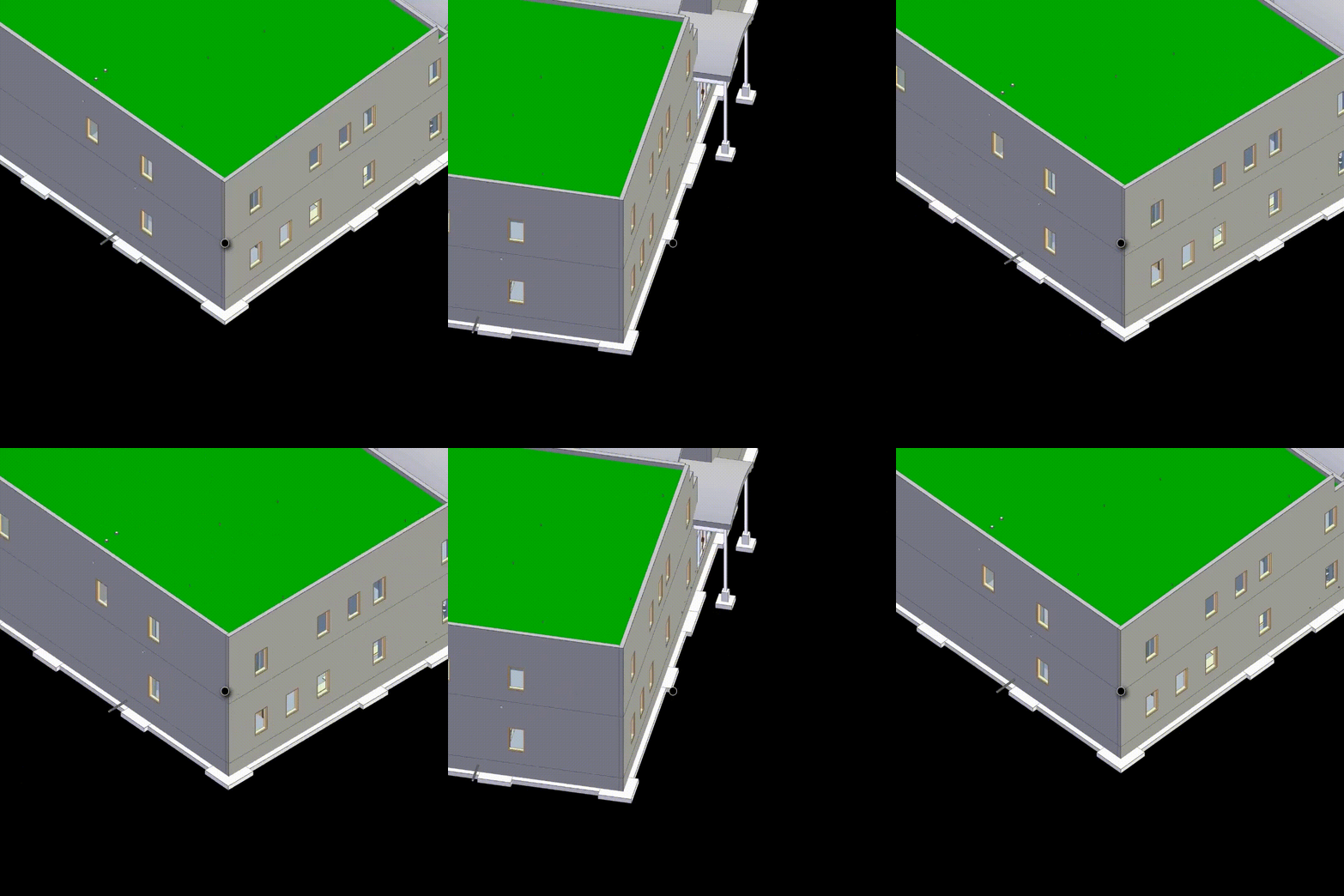
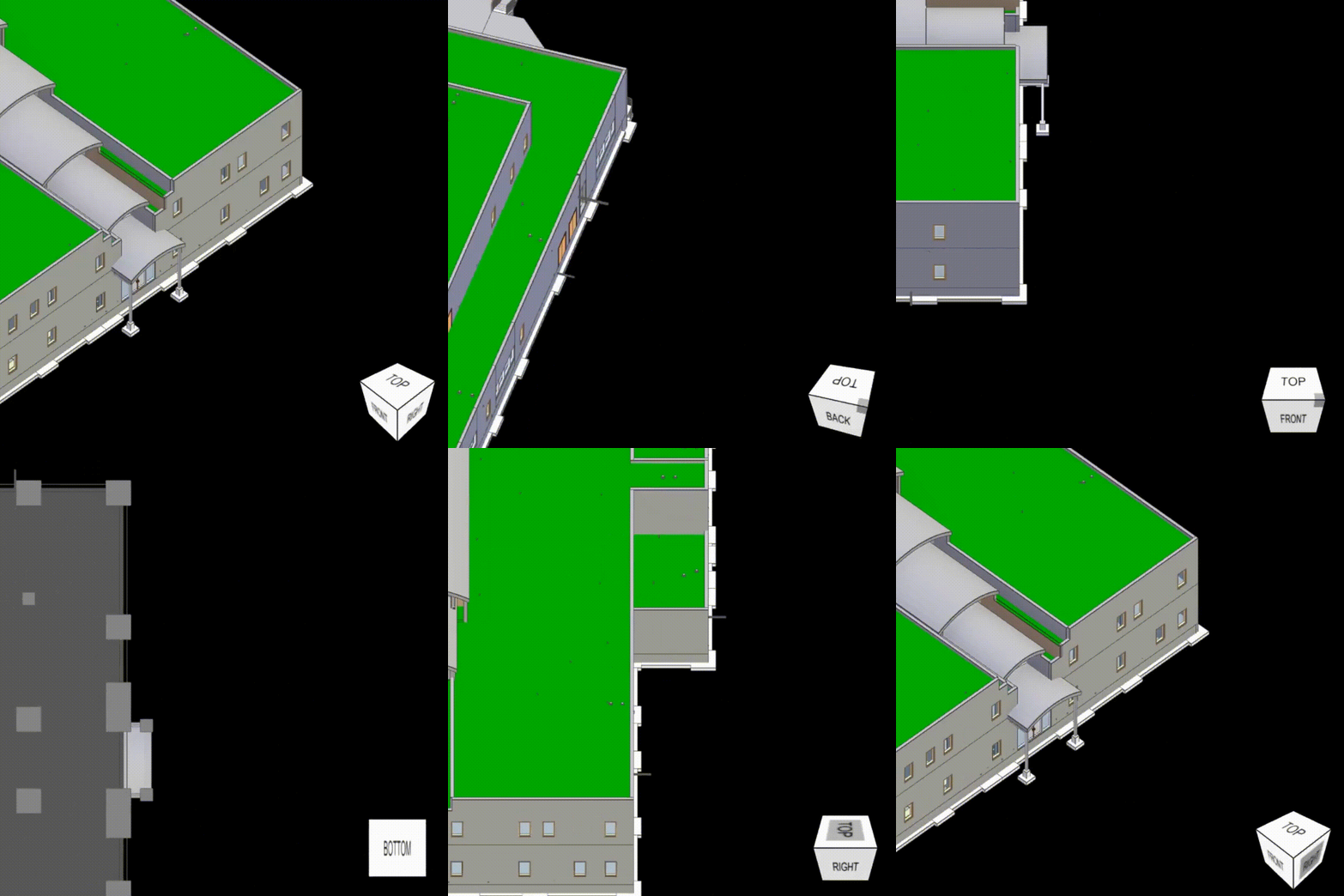
After importing a model, it is automatically displayed in the web-based viewer. For a true-to-scale view, click on the corresponding button in the upper toolbar. Use the mouse wheel to adjust the zoom and increase or decrease the distance to the model. To rotate the model, hold down the left mouse button and move the mouse – the model will rotate around the point you last clicked. Alternatively, you can use the control cube in the bottom right corner of the viewer to look at the model from predefined standard views (e.g., front view, side view, top view). Using the left side panel, you can filter objects specifically, e.g., by floors, categories, or component types.
Attributes on components
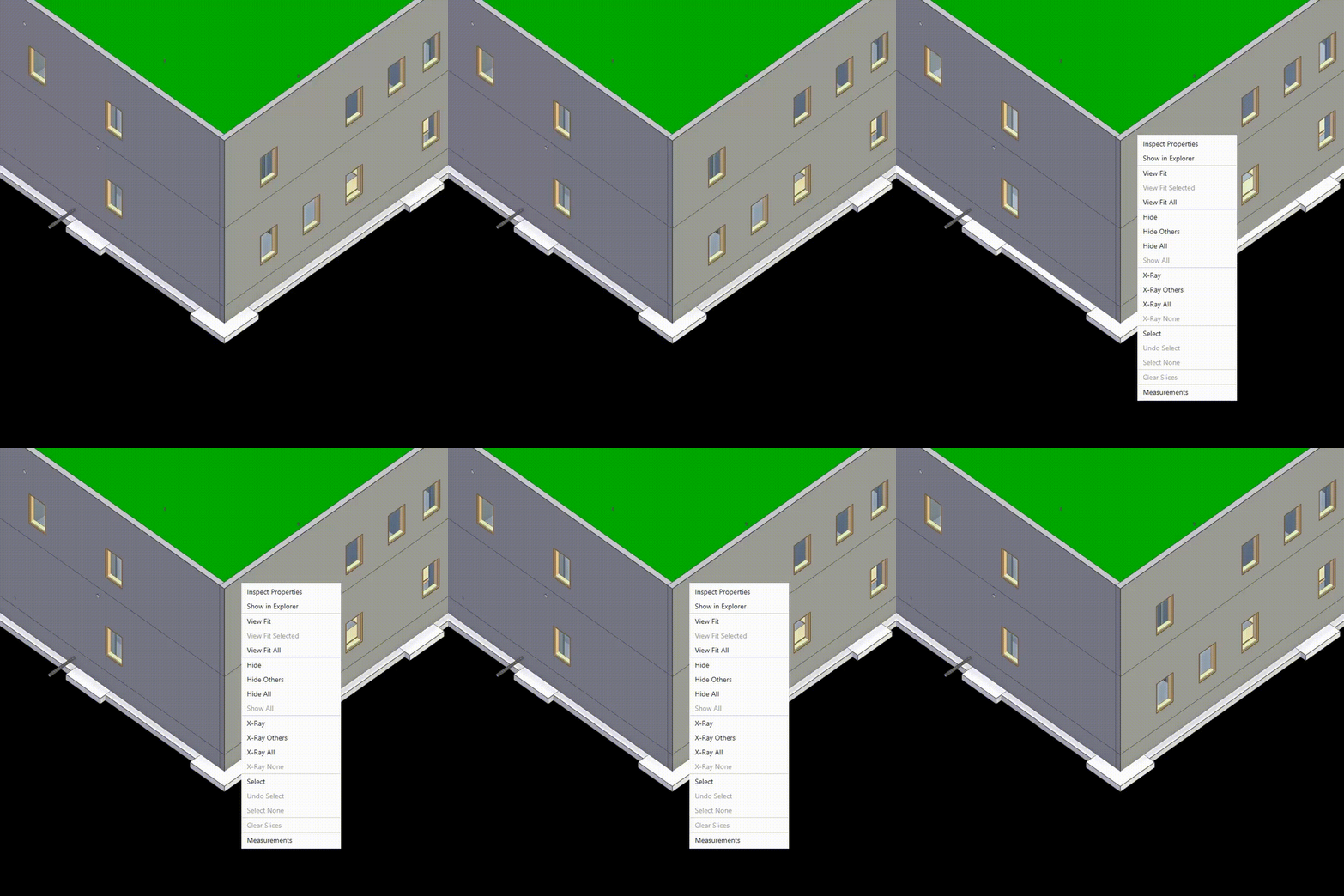
By right-clicking on a desired object within the model and selecting the "Inspect Properties" function in the context menu, the corresponding object attributes of the selected component are displayed. The attribute window will then open on the right side, clearly displaying all available properties of the element. This procedure is applicable to all components contained in the model.
Next to each displayed attribute, there is a copy symbol. By clicking on this symbol, the corresponding attribute value is copied to the clipboard and can then be reused anywhere.
IfcSpaces
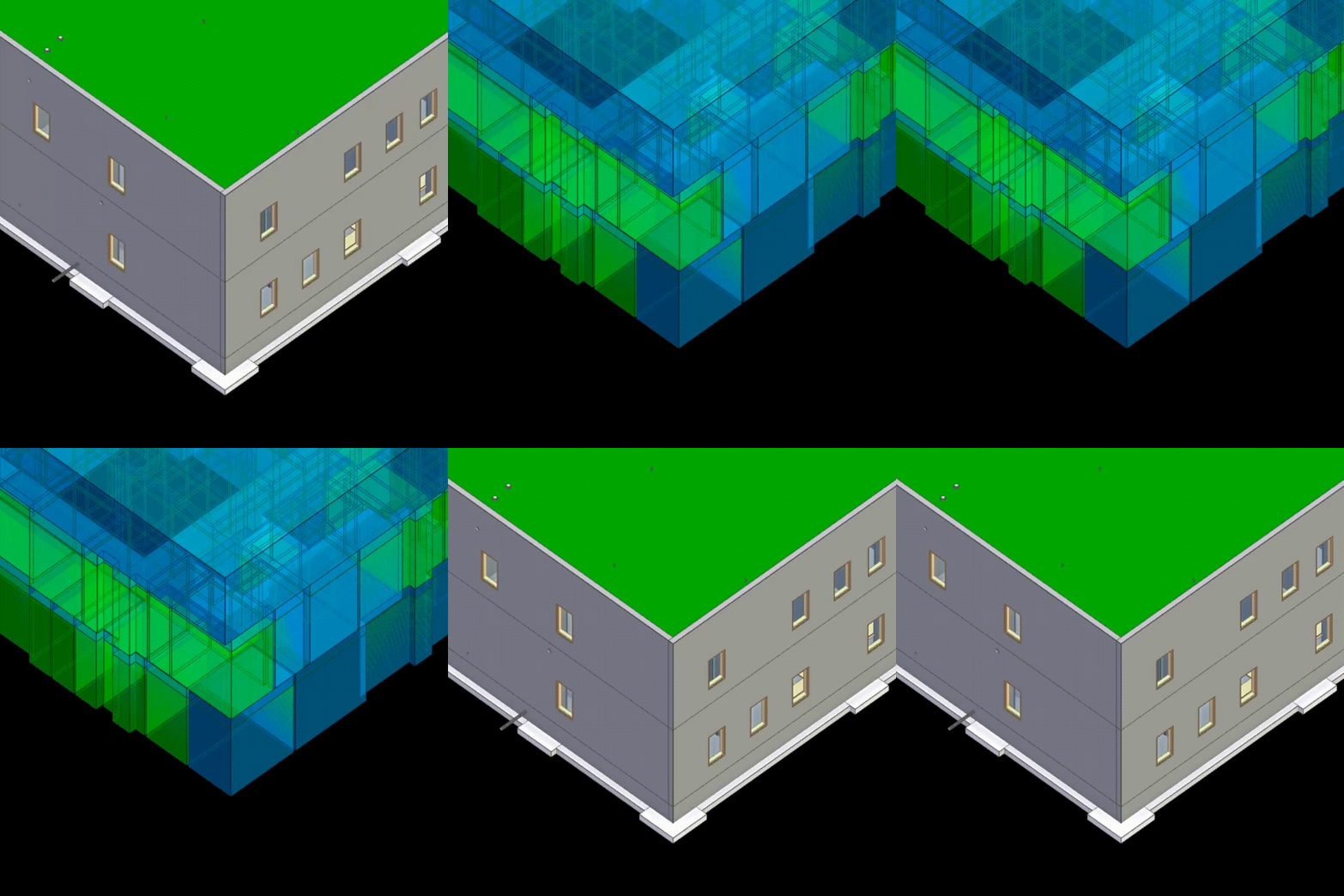
By clicking on the room symbol in the quick function bar, all rooms (IfcSpaces) from the currently selected discipline models are isolated in the viewer. This view allows you to specifically focus on room objects and can be further filtered and refined within the existing tree structures. For example, a specific floor can be selected via the "Storeys" sub-menu to limit the display to its rooms. Clicking the room symbol again hides the IfcSpaces and simultaneously loads the remaining components back into the viewer view.
Measurement Function
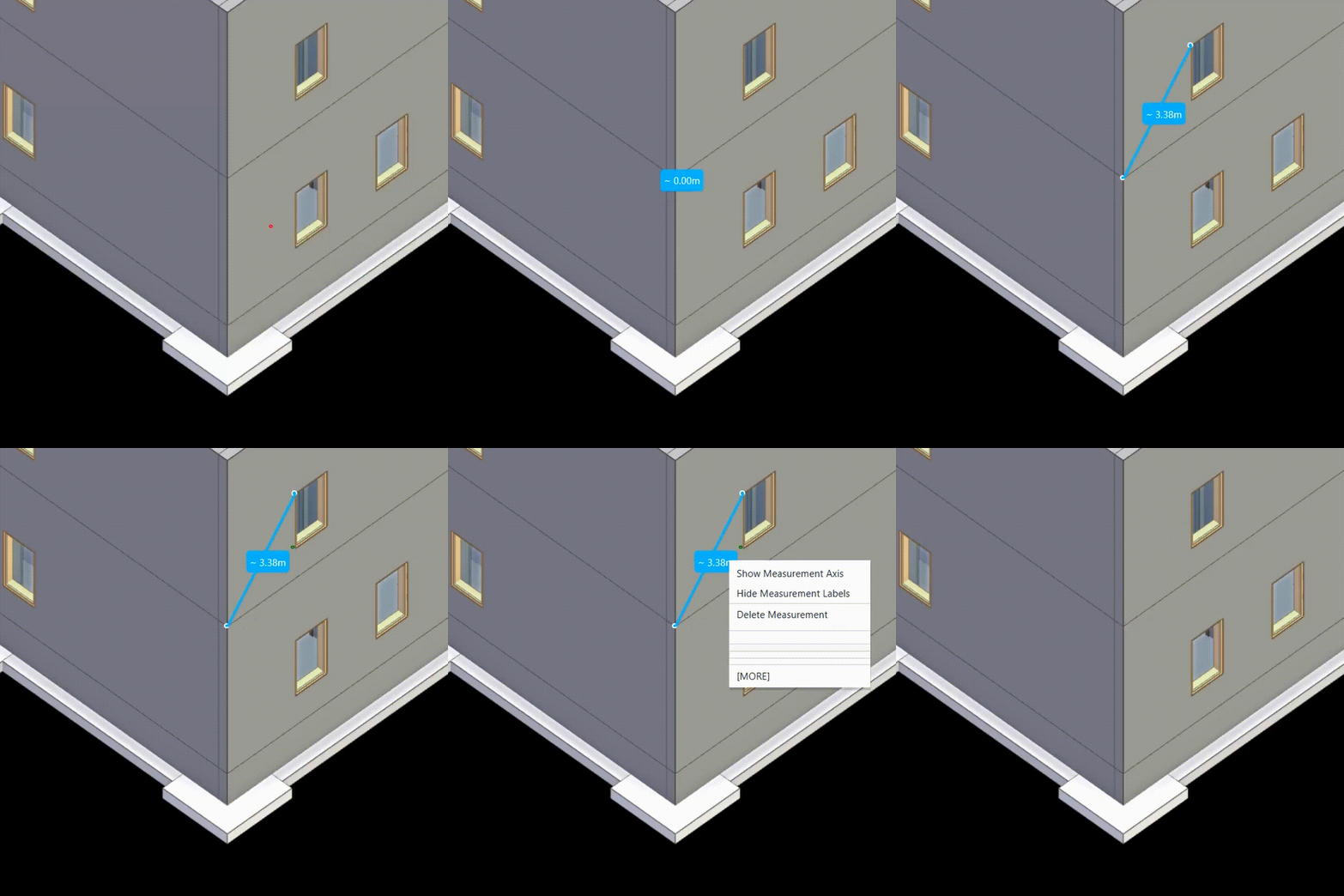
The measurement function in the viewer enables point-to-point measurements to determine distances within the model. After activating the function via the corresponding symbol in the quick function bar, any two points in the model can be selected. The distance between these two points is visualized directly in the viewer and indicated numerically.
Angle Measurement Function
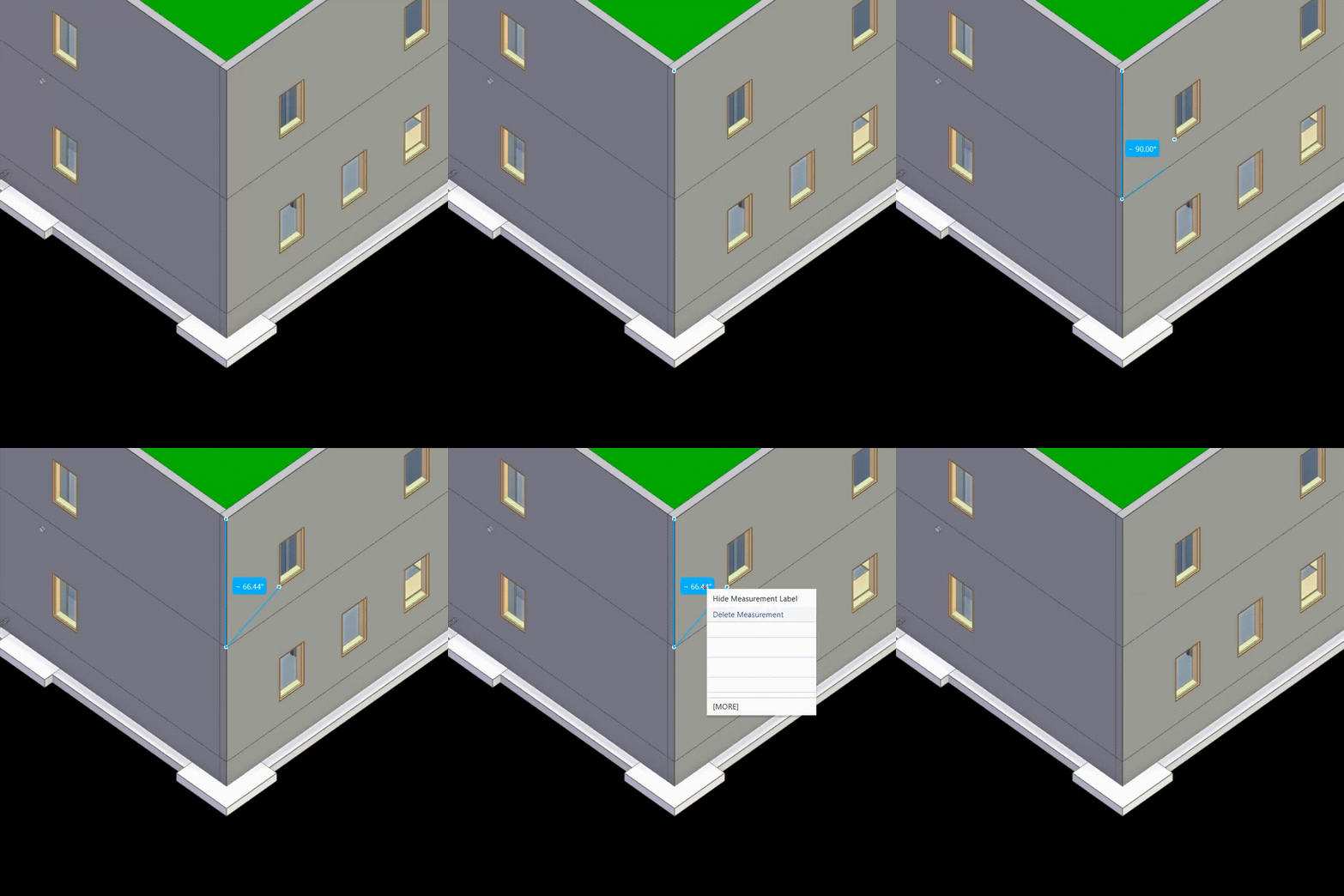
The angle measurement function in the viewer allows for the precise determination of an angle by selecting three points in the model. After activating the tool in the quick function bar, three points are defined one after the other: the first and third points mark the sides of the angle, while the second point represents the vertex. The formed angle is automatically calculated, visually displayed in the viewer, and given in degrees.
Section Function
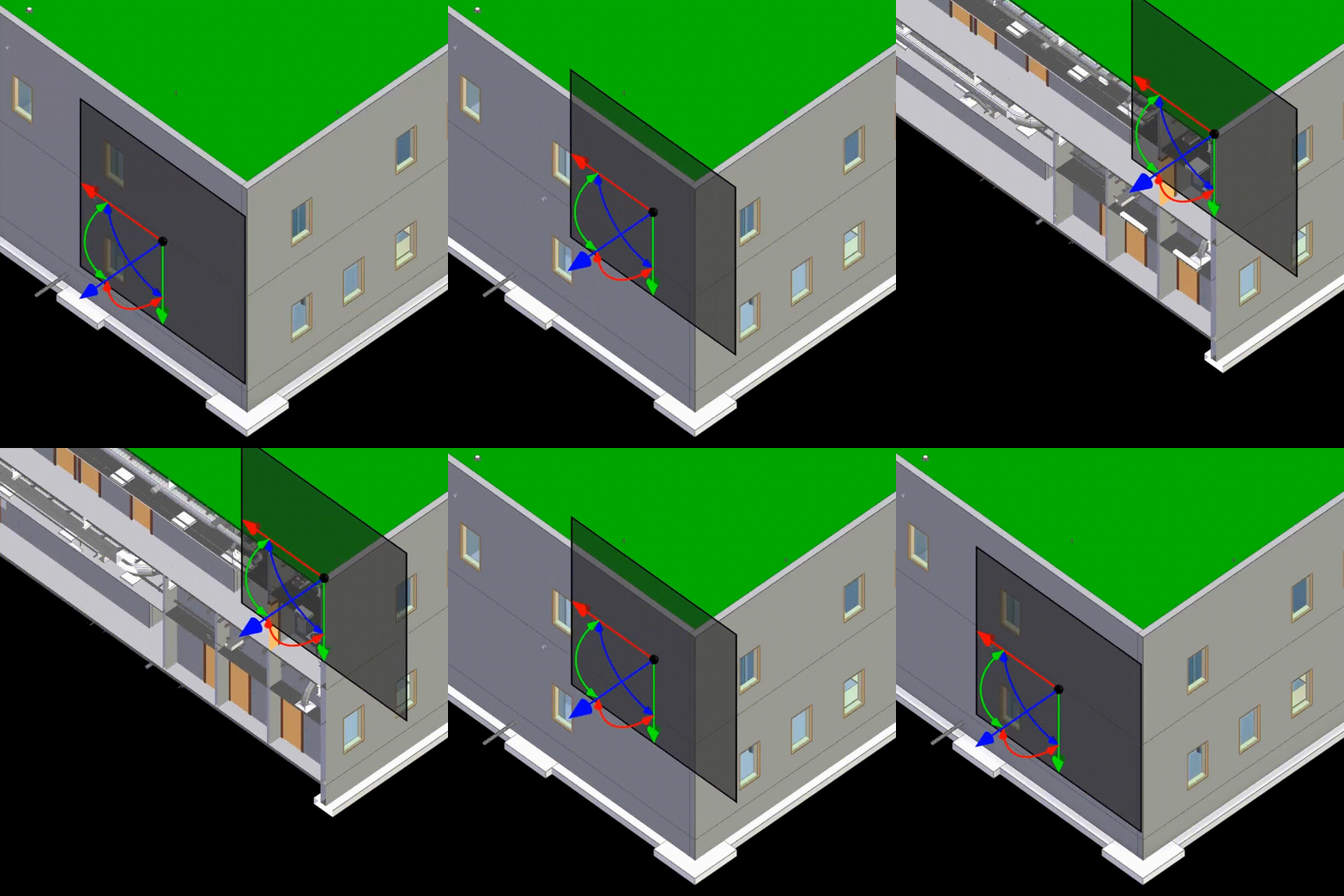
The section function allows the model to be visually cut along one or more planes in order to analyze the interior of the structure in detail. After activating the tool, the user can define a section plane whose orientation (X, Y, or Z axis) can be freely selected or adjusted via the coordinate system.
The section surface can be interactively moved, rotated, and precisely positioned. In addition, it is possible to activate multiple section planes simultaneously to create complex section views.
Zoom

Rotation

Control Cube
Properties

IfcSpaces

Measurement Function

A.measurement function

Section Function

Updated on 29.09.25